
How to assign letter to drive
4/3/2015
If you need to assign a letter to a drive or change an assigned letter, read this article.
1. Log on to Windows 10 as an administrator.
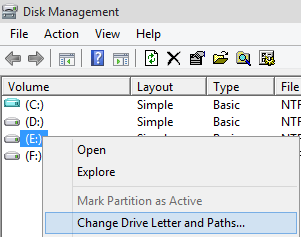
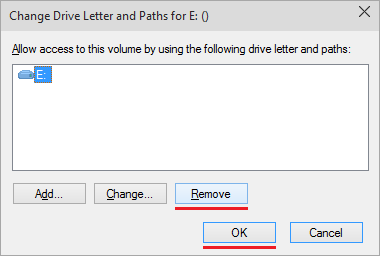
3. Right-click the drive or partition where you want to assign the letter and click Change Drive Letter and Paths.
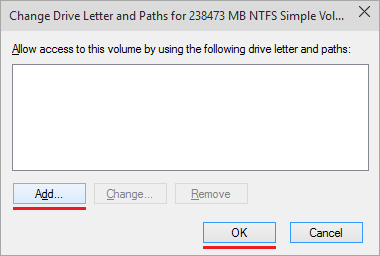
4. To add a letter (you can do this only if there is no letter assigned to the drive yet) click Add:
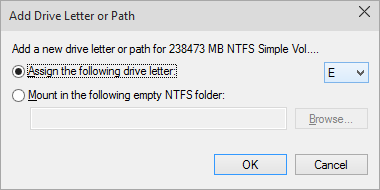
Then select Assign the following drive letter and choose a letter from the drop-down list.
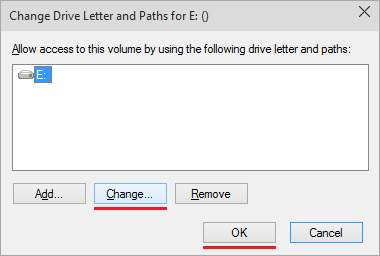
To change the previously assigned letter click Change:
Then select Assign the following drive letter and choose a new letter from the list.
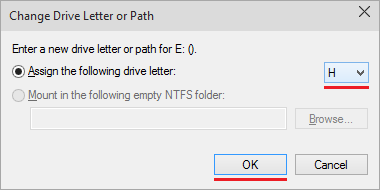
To remove the assigned letter click Remove.
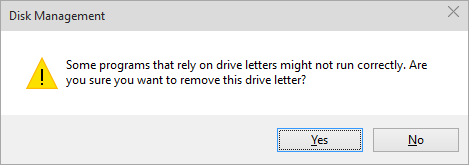
Confirm removal when the confirmation is requested.
Note. Drives without letters may be hidden in the This PC folder.
5. Click OK in all the Disk Management windows.
More about Disk Management: