
Secure Sign-in to Windows 10
4/23/2015
Some fraudulent software can plausibly imitate a logon process and steal user account passwords. The working principle of such prgrams is based on phishing and looks like that. After being installed on a computer a fraudulent application displays a counterfeit logon screen, that is looking very similar to the actual one. User is typing their username and password into that window. Then the program saves the entered data and sends it to evil doers.
Fortunately, Windows 10 has the Secure sign-in feature to protect users from the programs of that kind. When it is enabled, the real logon screen appears only after a user pressed the CTRL+ALT+DELETE hotkey.
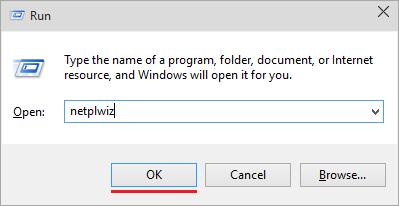
1. Press the WINDOWS+R hotkey, type netplwiz and click OK.
2. When the User Accounts window is displayed switch to the Advanced tab.
3. Under the Secure sign-in section check the Require users to press Ctrl+Alt+Delete checkbox.
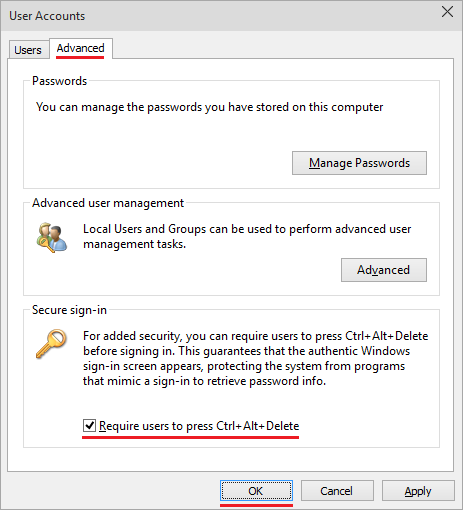
4. Click OK.
Since the moment Windows 10 will require the CTRL+ALT+DELETE hotkey to be pressed every time before the logon screen appears.
Note. Secure sign-in may be enabled only by an administrator. After being enabled, the Secure sign-in is applied to all the existing user accounts.
More about User Accounts:
- How to Sign in to Windows 10 if All Accounts are Disabled
- How to Change an Account Type in Windows 10
- How to Rename a User Account in Windows 10
- How to Remove a User Account in Windows 10
- How to Create a User Account in Windows 10
- Administrator User Account in Windows 10
- How to Log on to Windows 10 Automatically